
The other day, I was rendering a form in ColdFusion that contained a <select> element whose selection dictated some related behavior in the form. At the time, I was defining this relation by embedding and parsing a JSON (JavaScript Object Notation) payload in the page. But it occurred to me that the <option> element is an HTML element like any other; so, why not just use the data-* attributes to drive this relationship?
Run this demo in my JavaScript Demos project on GitHub.
View this code in my JavaScript Demos project on GitHub.
When it comes to using the <option> element, I've only ever defined the value and selected attributes in order to drive the state of the <select> control. But, at the end of the day, it's just HTML markup; which means that I can include any number of other native and custom attributes; including the data-* attribute. These attribute values can then be accessed by inspecting the Select element's selectedOptions collection.
To demonstrate, I've created a Select menu of friends. In addition to the value (the friend ID), I'm including two data attributes for BFF status and disposition. When the selection is changed, I output the selected data to the console:
<!doctype html>
<html lang="en">
<body>

	<h1>
		Storing Metadata On Select Option Elements
	</h1>

	<select name="friendID">
		<option value="">
			- Select -
		</option>
		<option value="1" data-bff="true" data-disposition="spicy">
			Naomi
		</option>
		<option value="2" data-bff="false" data-disposition="calm">
			Jon
		</option>
		<option value="3" data-bff="false" data-disposition="unpredictable">
			Kim
		</option>
		<option value="4" data-bff="false" data-disposition="fun">
			Lara
		</option>
	</select>

	<script type="text/javascript">

		var select = document.querySelector( "select" );

		// Listen for changes in selection.
		select.oninput = ( event ) => {

			// Ignore re-selection of empty option.
			if ( ! select.value ) {

				return;

			}

			var option = select.selectedOptions[ 0 ];

			console.group( "Friend Selection" );
			console.log( `ID: ${ select.value }` );
			console.log( `Name: ${ option.label }` );
			// In addition to the core VALUE/LABEL properties, we can consume the OPTION
			// just like any other HTML element, which means we can use the `data-*`
			// attributes to relay additional information associated with the option.
			console.log( `BFF: ${ option.dataset.bff }` );
			console.log( `Disposition: ${ option.dataset.disposition }` );
			console.groupEnd();

		};

	</script>

</body>
</html>
Since the Select element is inherently capable of multiple selections, the selectedOptions property is an array; despite the fact that multiple selections isn't possible in my demo configuration. As such, when the selection changes, I have to grab the first element in this collection. At that point, I access the .dataset property on the <option> reference, just as I would on any other HTML element.
And if we run this in the browser and change the selection, we get the following output:
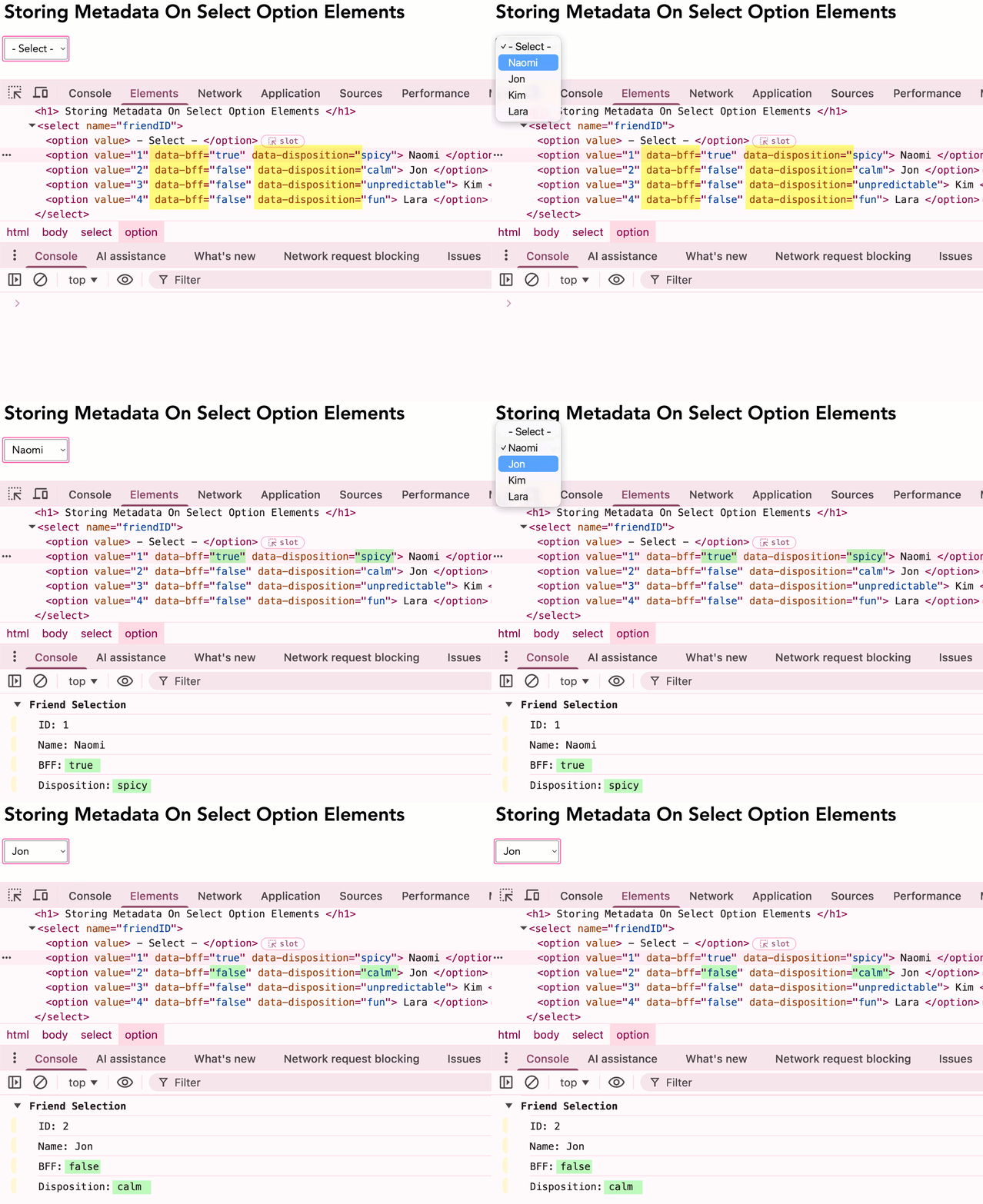
As you can see, in the input event handler, we're able to inspect the state of the <select>, grab the selected <option> element, and then extra the metadata stored in the data-* attributes. This provides a very elegant way for the ColdFusion server (or any multi-page application) to provide additional information relating to the selectable options.

Reader Comments
Data attributes are truly underrated.
That is facts! I've also been using them more for JavaScript hooks; which is especially nice with a ColdFusion framework like CFWheels where adding a class-name to a "form helper" might override the default classes being applied to that form UI.
For example, if I wanted to wire an autocomplete to a given input, I might do it like this:
Then, in my JavaScript, I can just look for any element that matches the selector,
[data-autocomplete-url]. All to say,data-attributes can be used in so many ways!I love using data-attributes (some still use hidden form fields the old way that pollute forms with irrelevant submit data). For conditional logic—like dynamically loading form fields based on selection—I attach data-attributes directly to elements and use this in event listeners.
Benefits:
@Andreas,
Yes, debugging and moving the elements around feels easier / safer when it's all collocated like that, great point!
Post A Comment — ❤️ I'd Love To Hear From You! ❤️
Post a Comment →