I wanted to give Barney Boisvert's CFImage contest a try, but unfortunately, this week has just beat on me like I owed it money. However, after looking at Barney's posted solution, there is no way that I would have been able to solve the problem anyway. It involved grabbing the underlying Java AWT graphics object and then using that to get font information and this was way out of my league.
Then, today, when he published his Extra Credit Solution, it totally inspired me. Barney, being the mad scientist that he is, filled my head with a whole lot of ColdFusion know-how, and I just had to put it to good use. And, while my use of ColdFusion 8 image manipulation functionality has not been very extensive, one thing that bothered me very quickly was the text handling. It just doesn't feel very intuitive or natural compared to HTML.
To overcome this deficiency, I have created a ColdFusion 8 user defined function, ImageDrawTextArea(), that works just like the builtin ColdFusion 8 ImageDrawText() method with the added features that you can specify a text area width, line-height, and text alignment. The real winner here, though, is the Width parameter. Being a text area rather than just a line of text, it does what you suspect it might: it wraps the text in such a way that it will fit in the given width.
In addition to the existing font attributes, the TextAlign attribute allows you to left, center, and right justify the text. The LineHeight attribute allows you to control the spacing of the individual lines as they wrap. To give you an idea of how this works, take a look at this snippet of code:
<!--- Draw the text area on the image object. --->
<cfset ImageDrawTextArea(
	imgCanvas,
	"If you think flattery will get you anywhere with me, well... that's where you're right.",
	50,
	50,
	400,
	objAttributes
	) />

<!--- Write the image to the browser. --->
<cfimage
	action="writetobrowser"
	source="#imgCanvas#"
	/>
Notice here that we are not breaking up our text in anyway - we are just passing it in as one long string. Then, with our 5th method parameters (value of 400), we are defining the width of the rendered text area (in which text wrapping will happen automatically). Running the above code (incomplete snippet), we get the following ColdFusion 8 image:
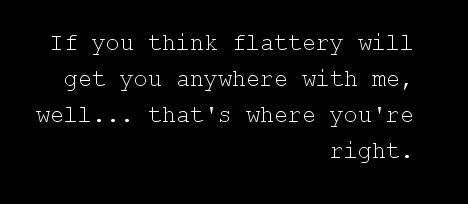
Notice that not only did the text wrap automatically, but it is also right-aligned in the text area. You cannot see it in the above snippet, but this is due to the TextAlign attribute being set.
ColdFusion 8 Online Demo: Try ImageDrawTextArea() out for yourself.
Before I output the code, I just wanna give Barney some more praise cause the dude is brilliant and I just would not have been able to figure any of this out without picking through his code (and adding a billion comments ;)). So anyway, here is code for ImageDrawTextArea(), my ColdFusion 8 user defined function:
<cffunction
	name="ImageDrawTextArea"
	access="public"
	returntype="void"
	output="true"
	hint="Draws a text area on the given canvas.">

	<cfargument
		name="Source"
		type="any"
		required="true"
		hint="The image on which we are going to write the text."
		/>

	<cfargument
		name="Text"
		type="string"
		required="true"
		hint="The text value that we are going to write."
		/>

	<cfargument
		name="X"
		type="numeric"
		required="true"
		hint="The X coordinate of the start of the text."
		/>

	<cfargument
		name="Y"
		type="numeric"
		required="true"
		hint="The Y coordinate of the baseline of the start of the text."
		/>

	<cfargument
		name="Width"
		type="numeric"
		required="true"
		hint="The width of the text area in which the text should fit."
		/>

	<cfargument
		name="Attributes"
		type="struct"
		required="false"
		default="#StructNew()#"
		hint="The attributes of the font (including TextAlign and LineHeight)."
		/>


	<!--- Define the local scope. --->
	<cfset var LOCAL = {} />


	<!---
		From the ColdFusion image, get the underlying Java AWT
		object. This will allow us access to properties that
		we will need to space and style the font.
	--->
	<cfset LOCAL.Graphics = ImageGetBufferedImage( ARGUMENTS.Source ).GetGraphics() />

	<!---
		Get the font that is currently set in the image. From
		this, we will be able to default the properties of our
		text attributes.
	--->
	<cfset LOCAL.CurrentFont = LOCAL.Graphics.GetFont() />


	<!---
		Now, we are going to check to see if the passed in
		attributes has all the properties that we need to
		properly render the new font. If it does not, then we
		are gonna default that attribute to what is in the
		current font of the graphic.
	--->


	<!--- Check for a defined size.--->
	<cfif NOT StructKeyExists( ARGUMENTS.Attributes, "Size" )>

		<!--- Get size from current font. --->
		<cfset ARGUMENTS.Attributes.Size = LOCAL.CurrentFont.GetSize() />

	</cfif>


	<!--- Check for a defined font. --->
	<cfif NOT StructKeyExists( ARGUMENTS.Attributes, "Font" )>

		<cfset ARGUMENTS.Attributes.Font = LOCAL.CurrentFont.GetFontName() />

	</cfif>


	<!--- Check for a defined style. --->
	<cfif NOT StructKeyExists( ARGUMENTS.Attributes, "Style" )>

		<!---
			When it comes to defaulting the style, we need to
			build not only the font attributes, but also the
			font style argument for creating our new font (for
			the Font Metrics). Because of that, we will be
			building a bit-mask for the style.

			Because the Styles are just constants, we can pull
			them out of our Current Font object.
		--->
		<cfif (
			LOCAL.CurrentFont.IsBold() AND
			LOCAL.CurrentFont.IsItalic()
			)>

			<!--- Set the style. --->
			<cfset ARGUMENTS.Attributes.Style = "bolditalic" />

			<!--- Set the bit mask. --->
			<cfset LOCAL.FontStyleMask = BitOR(
				LOCAL.CurrentFont.BOLD,
				LOCAL.CurrentFont.ITALIC
				) />

		<cfelseif LOCAL.CurrentFont.IsBold()>

			<!--- Set the style. --->
			<cfset ARGUMENTS.Attributes.Style = "bold" />

			<!--- Set the bit mask. --->
			<cfset LOCAL.FontStyleMask = LOCAL.CurrentFont.BOLD />

		<cfelseif LOCAL.CurrentFont.IsItalic()>

			<!--- Set the style. --->
			<cfset ARGUMENTS.Attributes.Style = "italic" />

			<!--- Set the bit mask. --->
			<cfset LOCAL.FontStyleMask = LOCAL.CurrentFont.ITALIC />

		<cfelse>

			<!--- Set the style. --->
			<cfset ARGUMENTS.Attributes.Style = "plain" />

			<!--- Set the bit mask. --->
			<cfset LOCAL.FontStyleMask = LOCAL.CurrentFont.PLAIN />

		</cfif>

	<cfelse>

		<!--- Set the plain font mask. --->
		<cfset LOCAL.FontStyleMask = LOCAL.CurrentFont.PLAIN />

	</cfif>


	<!---
		Now that we have our Font attributes all paramed, we
		need to create a new Font object (that will be used to
		get the Font Metrics for the user's text).
	--->
	<cfset LOCAL.NewFont = CreateObject(
		"java",
		"java.awt.Font"
		).Init(
			JavaCast( "string", ARGUMENTS.Attributes.Font ),
			JavaCast( "int", LOCAL.FontStyleMask ),
			JavaCast( "int", ARGUMENTS.Attributes.Size )
			)
		/>


	<!---
		ASSERT: At this point, we have paramed the
		font attributes that are required for a
		normal ImageDrawText() call.
	--->


	<!---
		In additional the standard attributes defined above,
		this function allows for a few additional font
		attributes. Let's give them some default values.
	--->
	<cfparam
		name="ARGUMENTS.Attributes.LineHeight"
		type="numeric"
		default="#(1.4 * ARGUMENTS.Attributes.Size)#"
		/>

	<cfparam
		name="ARGUMENTS.Attributes.TextAlign"
		type="string"
		default="left"
		/>


	<!---
		Now that we have our new Font set up, get the
		Font Metrics for our graphic in the context of
		the new Font.
	--->
	<cfset LOCAL.FontMetrics = LOCAL.Graphics.GetFontMetrics(
		LOCAL.NewFont
		) />


	<!---
		Now, that we have our font-testing environment set up,
		it's time to start figuring out how we are gonna layout
		the text. To begin, we are going to take the user's text
		and split it up into an array of word tokens (based on
		single spaces).
	--->
	<cfset LOCAL.Words = ARGUMENTS.Text.Split(
		JavaCast( "string", " " )
		) />

	<!---
		As we loop through the words, we are going to keep
		track of which words fit onto each line and the
		dimensions that that line occupies. To store this, we
		will use an array of Line structures.
	--->
	<cfset LOCAL.Lines = [] />

	<!---
		Create the first line item. Here, the Text is the
		string data for the line and the Width / Height are
		the physical dimensions of the text.
	--->
	<cfset LOCAL.Lines[ 1 ] = {
		Text = "",
		Width = 0,
		Height = 0
		} />


	<!--- Loop over all the words. --->
	<cfloop
		index="LOCAL.WordIndex"
		from="1"
		to="#ArrayLen( LOCAL.Words )#"
		step="1">

		<!--- Get a short hand to the current word. --->
		<cfset LOCAL.Word = LOCAL.Words[ LOCAL.WordIndex ] />

		<!--- Get a short hand to the current line. --->
		<cfset LOCAL.Line = LOCAL.Lines[ ArrayLen( LOCAL.Lines ) ] />


		<!---
			Using the Font Metrics, get the bounds of the
			current text line with the addition of the next
			word.
		--->
		<cfset LOCAL.TextBounds = LOCAL.FontMetrics.GetStringBounds(
			JavaCast(
				"string",
				Trim( LOCAL.Line.Text & " " & LOCAL.Word )
				),
			LOCAL.Graphics
			) />


		<!---
			Now that we have the physical dimensions, we need to
			check to see if new line would be too wide for the
			text area. If it is too wide and there is not text
			on the line yet, then add it anyway as it simply is
			too wide for the text area.
		--->
		<cfif (
			(LOCAL.TextBounds.GetWidth() LTE ARGUMENTS.Width) OR
			(NOT Len( LOCAL.Line.Text ))
			)>

			<!---
				The current word will fit on the current line
				so add it to the string data of the line. If
				this is NOT the first word, be sure to add a
				preceeding space.
			--->
			<cfset LOCAL.Line.Text &= (
				IIF(
					Len( LOCAL.Line.Text ),
					DE( " " ),
					DE( "" )
					) &
				LOCAL.Word
				) />

			<!---
				Since the text data of this line has been
				updated, we need to get the updated dimensions
				of the line. When it comes go getting the width,
				we have to be careful about lines that are too
				wide for the text area. We never want to record
				any width that is larger than the text area.
			--->
			<cfset LOCAL.Line.Width = Min(
				LOCAL.TextBounds.GetWidth(),
				ARGUMENTS.Width
				) />

			<!--- Get height. --->
			<cfset LOCAL.Line.Height = LOCAL.TextBounds.GetHeight() />

		<cfelse>

			<!---
				Due to the dimensions of the potential line, we
				are going to have to move the current word to a
				new line. For this we must create a new line
				object and insert the word.
			--->

			<!---
				Get the bounds of the new line (which will be
				the same as the bounds of the current word).
			--->
			<cfset LOCAL.TextBounds = LOCAL.FontMetrics.GetStringBounds(
				JavaCast( "string", LOCAL.Word ),
				LOCAL.Graphics
				) />

			<!--- Create a new line object. --->
			<cfset LOCAL.Line = {
				Text = LOCAL.Word,
				Width = LOCAL.TextBounds.GetWidth(),
				Height = LOCAL.TextBounds.GetHeight()
				} />

			<!--- Append the new line object to our array. --->
			<cfset ArrayAppend(
				LOCAL.Lines,
				LOCAL.Line
				) />

		</cfif>

	</cfloop>


	<!---
		ASSERT: At this point, we have determined which text
		will go on which lines of our rendered text area. We
		also know the dimensions of each line of text.
	--->


	<!---
		Now, it's time to actually draw the text on the passed
		in image object. Loop over the lines array.
	--->
	<cfloop
		index="LOCAL.LineIndex"
		from="1"
		to="#ArrayLen( LOCAL.Lines )#"
		step="1">

		<!--- Get a shorthand to the current line object. --->
		<cfset LOCAL.Line = LOCAL.Lines[ LOCAL.LineIndex ] />


		<!---
			Let's determine the X-coordinate of this line of
			text. This will depend on the alignment of the text
			(left, center, right).
		--->
		<cfswitch expression="#ARGUMENTS.Attributes.TextAlign#">

			<!--- Right aligned text. --->
			<cfcase value="right">

				<cfset LOCAL.X = (
					ARGUMENTS.X +
					ARGUMENTS.Width -
					LOCAL.Line.Width
					) />

			</cfcase>

			<!--- Center align text. --->
			<cfcase value="center">

				<cfset LOCAL.X = (
					ARGUMENTS.X +
					Fix(
						(ARGUMENTS.Width - LOCAL.Line.Width) /
						2
					)) />

			</cfcase>

			<!--- Left aligned text. --->
			<cfdefaultcase>

				<cfset LOCAL.X = ARGUMENTS.X />

			</cfdefaultcase>
		</cfswitch>


		<!---
			When getting the Y value of the line, we have to
			take into account line height and count of the
			current line. This is for the baseline of the text,
			NOT the top-left-most corner.
		--->
		<cfset LOCAL.Y = (
			ARGUMENTS.Y +
			(
				(LOCAL.LineIndex - 1) *
				ARGUMENTS.Attributes.LineHeight
			)) />


		<!---
			Draw the text at the given coordinates. Pass in
			the structure that we got. This Attributes structure
			will contain extraneous information (TextAlign,
			LineHeight), but this will not throw an error.
		--->
		<cfset ImageDrawText(
			ARGUMENTS.Source,
			LOCAL.Line.Text,
			LOCAL.X,
			LOCAL.Y,
			ARGUMENTS.Attributes
			) />

	</cfloop>


	<!--- Return out. --->
	<cfreturn />
</cffunction>
It's a lot of code, but it's not crazy complicated when you break it down piece by piece. The key to this whole algorithm is the ability to get the bounding dimensions (width and height) of a given string based the graphics "Font Metrics" in the context of the given Font.
On my ColdFusion 8 Test Server, I have set up a demo page (same link as above). If you are interested in the code that powers that page, here it is:
<!--- Kill extra output. --->
<cfsilent>
<!--- Param the form values. --->
<cfparam
name="FORM.font"
type="string"
default="courier new"
/>
<cfparam
name="FORM.size"
type="numeric"
default="24"
/>
<cfparam
name="FORM.text_align"
type="string"
default="right"
/>
<cfparam
name="FORM.line_height"
type="numeric"
default="#Fix(FORM.size * 1.5)#"
/>
<cfparam
name="FORM.text"
type="string"
default="I hope this doesn't come off as offensive, but seeing you in that dress will most definately be the highlight of my day."
/>
<cfparam
name="FORM.width"
type="numeric"
default="400"
/>
</cfsilent>
<cfoutput>
<!DOCTYPE html PUBLIC "-//W3C//DTD XHTML 1.0 Transitional//EN" "http://www.w3.org/TR/xhtml1/DTD/xhtml1-transitional.dtd">
<html>
<head>
<title>ImageDrawTextArea() ColdFusion 8 Demo</title>
<style type="text/css">
body {
font-family: verdana ;
font-size: 62.5% ;
}
p {
clear: both ;
font-size: 1.2em ;
}
label {
float: left ;
font-weight: bold ;
width: 120px ;
}
input,
select {
width: 400px ;
}
</style>
</head>
<body>
<h1>
ImageDrawTextArea() ColdFusion 8 Demo
</h1>
<form action="#CGI.script_name#" method="post">
<p>
<label>Font:</label>
<select name="font">
<cfloop
index="strFont"
list="verdana,arial,courier new,georgia"
delimiters=",">
<option value="#strFont#"
<cfif (FORM.font EQ strFont)>
selected="true"
</cfif>
>#strFont#</option>
</cfloop>
</select>
</p>
<p>
<label>Size:</label>
<select name="size">
<cfloop
index="intSize"
from="8"
to="40"
step="1">
<option value="#intSize#"
<cfif (FORM.size EQ intSize)>
selected="true"
</cfif>
>#intSize#</option>
</cfloop>
</select>
</p>
<p>
<label>Align:</label>
<select name="text_align">
<cfloop
index="strAlign"
list="left,center,right"
delimiters=",">
<option value="#strAlign#"
<cfif (FORM.text_align EQ strAlign)>
selected="true"
</cfif>
>#strAlign#</option>
</cfloop>
</select>
</p>
<p>
<label>Line Height:</label>
<select name="line_height">
<cfloop
index="intHeight"
from="10"
to="50"
step="1">
<option value="#intHeight#"
<cfif (FORM.line_height EQ intHeight)>
selected="true"
</cfif>
>#intHeight#</option>
</cfloop>
</select>
</p>
<p>
<label>Text:</label>
<input type="text" name="text" value="#HtmlEditFormat( FORM.text )#" />
</p>
<p>
<label>Textarea Width:</label>
<select name="width">
<cfloop
index="intWidth"
list="100,200,300,400,500"
delimiters=",">
<option value="#intWidth#"
<cfif (FORM.width EQ intWidth)>
selected="true"
</cfif>
>#intWidth#</option>
</cfloop>
</select>
</p>
<p>
<button type="submit">
Generate Image »
</button>
</p>
</form>
<h2>
Rendered Image and Text Area
</h2>
<!--- Create a new canvas. --->
<cfset imgCanvas = ImageNew( "", 545, 350, "rgb" ) />
<!--- Set up the font attributes. --->
<cfset objAttributes = {
Font = FORM.font,
Size = FORM.size,
TextAlign = FORM.text_align,
LineHeight = FORM.line_height
} />
<!--- Turn on anti-aliasing for nicer rendering. --->
<cfset ImageSetAntialiasing(
imgCanvas,
"on"
) />
<!--- Draw the text area on the image object. --->
<cfset ImageDrawTextArea(
imgCanvas,
FORM.text,
50,
50,
FORM.width,
objAttributes
) />
<!--- Write the image to the browser. --->
<cfimage
action="writetobrowser"
source="#imgCanvas#"
/>
</body>
</html>
</cfoutput>
Hopefully, this will make drawing text on a ColdFusion 8 image a whole lot easier.

Reader Comments
Wow, I love it.
@Ryan,
Thanks. It was a lot of fun to write.
Excellent work, Ben, but I'd have to say I think you're thinking about this problem in the wrong way because of the difference between textarea and CFIMAGE. You can't make a UDF to wrap text onto a CFIMAGE in the same way a textarea does because a CFIMAGE doesn't have a scrollbar. If you enter 100 for the width on your demo and leave the default text there, you can't see most of the string because it goes below the image area.
Your solution will work for some situations, but you still have to do the work of picking the right font size for the area available. This will be hunky-dory in some situations with mainly static content but as soon as you have dynamic text, you may run into the problem with text vanishing outside the bounds of the CFIMAGE.
I'm working on a UDF where you pass a string, and have the function scale the font to fit inside the CFIMAGE area. I started this a while back and nearly got it working but ran out of time. I posted the code in a comment on Ray's blog, in a CFIMAGE related entry on 17/9 (I only remember that because it's the day before my birthday :p). I can't remember how much of it I got working but if it's of interest, go have a look. I might have some time this afternoon to actually finish it off!
@George,
Interesting. I never thought of auto-scaling. It would be an interesting problem. You would have to have some conditional loop. See, you can't just figure out the font size once because each time to you adjust the font size, it will adjust the spacing between lines as well as the number of lines that need to be rendered. So, you'd have to kind of loop OVER the meat of my algorithm until the entire set of dimensions lines up nicely.
I will have to take a look at what you posted on Ray's blog.
Oh, that´s great. This is what i need. Cause i search exatly this code for my own little project. Thanks for share it! Very usefully
Very interesting article. I try to learn ColdFusion 8, because i think it would be nice for my next project to work with ColdFusion 8.... And now i search many informations about ColdFusion. Thanks for it ;)
Great tips.
Do you know if it's possible to add letterspacing (tracking) with this component?? I'm not really into the java thingie and can't figure it out :-(
My Favorit blog. Very good information. Thanks and best regards
Hi Ben,
FYI: The link of this text "ColdFusion 8 Online Demo: Try ImageDrawTextArea() out for yourself." go to different web site and my antispyware block it out.
Thanks for this function. However, it is missing the ability to consider cr/lf to end the current line. True or not? At least I was not able to get text with cr/lf or \n or <br> to layout as desired.
Awesome little extension Ben ... you rock so hard the ensuing tsunami reaches Tokyo Bay!
I need to do this for a current project, and like Martin, I also need to have line breaks rendered to the image, but I found it easier to solve with a workaround than get fully my head around the code. (seems to be some Java voodoo in there :)
Here is my approach:
First, I changed Ben's function to return the LineHeight value multiplied by the number of lines, changing the opening tag to:
<cffunction
name="ImageDrawTextArea"
access="public"
returntype="numeric"
output="true"
hint="Draws a text area on the given canvas.">
and the return tag to:
<cfreturn ArrayLen( LOCAL.Lines ) * ARGUMENTS.Attributes.LineHeight />
My string comes from a form submission, so I treat that as a list delimited by line feeds, and convert it to an array. CF ignores empty list items, so use <br> as a placeholder - not perfect, but good enough for me:
strings = listToArray(Replace(form.string, chr(13), chr(13) & '<br>', 'ALL'), chr(13));
Then I loop over the strings, strip out the placeholder and draw them to the image .. adding the returned line height to the Y position each time to move the start point to the appropriate place on my large background image:
top = 900;
for (i = 1; i lte arrayLen(strings); i = i + 1) {
height = ImageDrawTextArea(myImage, Replace(strings[i], '<br>', ''), 500, top, 1000, attr);
top = top + height;}
All a bit hacky, but it works for me. The native function would be much more useful if it did all this, and also handled the scaling mentioned by George above. Maybe in CF10...
Sorry for the long comment, but hopefully someone finds it useful!
-Rob
@Rob,
I agree - a native function to do this would be waaay awesome. Sounds like you got this solved pretty well though.
I made my comment because I am no Java geek. I did not know whether Java by itself accounts for cr/lf, \n etc. It obviously does not. So I also created my own derivation from your DrawText and I came up with about the same solution as Rob.
However, I found another very annoying "strangeness" in CF8/9. But that's another story ...
@Martin,
It's been a while since I looked at this; but, I don't think I handled explicit line breaks because it just made the calculations harder. Perhaps in another version.
Hallefreakinluyah!!!!
I have been laboriously converting hundreds of programs that use Jukka Manner's exquisite CFX_Image tag (with its extensive text handling capabilities) to CFImage, and the text handling in CFImage are soooo primitive. I had bumped up against this problem of needing to specify a text area and have things automatically centered, when I googled this solution. THANKS A MILLION!!
@Dave,
No problem! I agree - there is a lot to be desired in the image handling. I have some more ideas that I'd love to kick around; but just never found the time.
Hi ben thanks for the article. Once again it was very helpful.
But can you please suggest how can we add color (I know how to give font,size)to the overlapping text please.
Thanks Ben
Yup...found answer to my previous question in cf's function ImageSetDrawingColor.
Thanks anyways Ben.
Small bug: If you've passed a non-plain font Style value in the Attributes argument, it is not being passed on to LOCAL.NewFont, because LOCAL.FontStyleMask is set to LOCAL.CurrentFont.PLAIN. That in turn gives you a FontMetrics object which gives faulty getStringBounds values when you're using bold/italic/bolditalic fonts.
Solution is before the <cfelse> clause that sets LOCAL.FontStyleMask to LOCAL.CurrentFont.PLAIN, is a series of <cfelseif> clauses for each style type. Can't seem to post the code here...
Rob and Christopher and others intensely interested in this, I would really like to talk with you guys (dave@davemorris.com). My entire business is based on the ability to precisely position text blocks onto graphics, and this is of huge interest to me. I've been doing it with a 32-bit CFX tag that is no longer any good on 64-bit operating systems, and I'm having to take giant leaps backwards in features.
To do line breaks, all you need to do is in the code where he is deciding whether to wrap to the next line or not (the cfif testing GetWidth versus Argument.Width), just insert a FindNoCase for your delimiter, whether that's an \n or CHR(10) or whatever you want. If it finds that delimiter, let it perform the wrap to the next line. Then, in the <cfelse> for that same <cfif>, just use a ReplaceNoCase to strip out the delimiter from any word.
I can't believe that CF now belonging to the premier graphics software company, we're still having to resort to such brute force methods after all these years!
<cfif ((FindNoCase("\n",LOCAL.Word) IS 0) AND
((LOCAL.TextBounds.GetWidth() LTE ARGUMENTS.Width) OR
(NOT Len( LOCAL.Line.Text ))))>
blah
blah
<cfelse>
<!--- Word contained NewLine, so remove it --->
<CFSET LOCAL.Word = ReplaceNoCase(LOCAL.Word,"\n","")>
blah
blah
I've been trying Dave's recommendation but can't make it wrap to the next line.
Hi Ben,
I'm hoping that you can help me out.
Why does the ImageDrawText function (ColdFusion 9) create blurred text when I use a fontstyle [Arial] fontsize[8]?
I do have ImageSetAntialiasing(myImage,"on")
Output File [PNG]
Thanks,
Freddie